I'm sure I'm not the only one who was dissapointed to see that this plugin was unusable out of the box with the original authors site offline. However with a little digging, and a little effort, I was able to find the shortcode documentation and was able to identify the patch required to make the bridge functional again.
Because the author's website is offline, a portion of code that was meant to check for valid IP configuration in the config against a checker on his site would always casue the plugin to fail. By removing this extra check the plugin runs correctly, however you must be sure you have entered your IP address correctly.
To fix this yourself you must change the following in the script around line 70:
 // Try validate the external IP for the Rust server
            if (_config.External_IP == "" || _config.External_IP == "PASTE_EXTERNAL_IP_HERE" || !ValidIPv4(_config.External_IP))
            {
                // Using webRequester to request danlevi service for external ip
                webRequester.Post("https://danlevi.no/services/whatismyip/", null, (code, ip) => {
                    if(code != 0)
                    {
                        // Remove any occurences of line feed (LF) character / carriage return (CR) character
                        ip = ip.Replace("\n", "").Replace("\r", "");
                        if (code == 200 && ValidIPv4(ip))
                        {
                            _config.External_IP = ip;
                            SaveConfig();
                        }
                    }
                    p(false, "External IP needs to be set.");
                    return;
                });
            }
Replace with this:
// Try validate the external IP for the Rust server
			if (_config.External_IP == "" || _config.External_IP == "PASTE_EXTERNAL_IP_HERE")
			{
				p(false, "External IP needs to be set.");
				return;
			}
This change removes the external check and allows the plugin to proceed.
Shortcode Docs:
Server Statistics:
[wpbridge_server_REPLACEWITHSERVERSTAT]Server stats
- ip
- port
- level
- identity
- seed
- worldsize
- maxplayers
- hostname
- description
- updated
The shortcode returns the respective server variable requested.
Example 1: [wpbridge_server_ip] Returns the current external ip for your server.Example 2: [wpbridge_server_identity] Returns the current identity set on your server.
Example 3: [wpbridge_server_description] Returns the current description set on your server.
Player Statistics:
[wpbridge_top_REPLACEWITHSTAT num=”NUMBEROFPLAYERS” name=”false“]REPLACEWITHSERVERSTAT = The player stat that you want to display.
Player stats
- joins
- leaves
- deaths
- suicides
- kills
- headshots
- wounded
- recoveries
- crafteditems
- repaireditems
- explosivesthrown
- voicebytes
- hammerhits
- reloads
- shots
- collectiblespickedup
- growablesgathered
- chats
- npckills
- meleeattacks
- mapmarkers
- respawns
- rocketslaunched
- antihackviolations
- npcspeaks
- researcheditems
- killedbynpc
- lootcontainer
- lootbradheli
- loothackable
- lootcontainerunderwater
The shortcode returns either a table with X number of players that have the highest stat that is requested, or a string with a single players stat and name.
Example 1: [wpbridge_top_kills num=”5″] Returns a table with 5 players, showing both the numbers and names with highest number of kills.Example 2: [wpbridge_top_kills num=”1″] Returns a string with the single player with most kills formatted like this: PLAYER has X kills.
Example 3: [wpbridge_top_kills num=”1″ name=”false”] Returns only the number of the player with highest number of kills.
Example 4: [wpbridge_top_lootbradheli num=”3″] Returns a table with 3 players, showing both the numbers and names which have looted Brad/Heli the most.
rust-servers API:
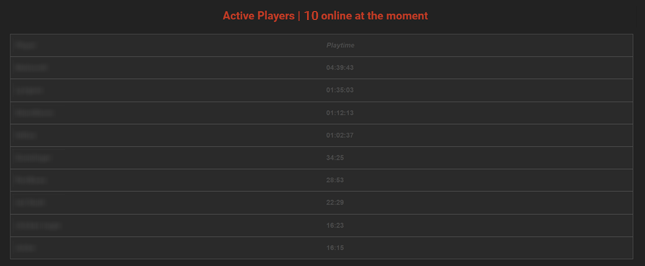
The shortcode returns either a table with player names and play time, or a string with the number of active players. If there are no active players it returns a string formatted like this: No Players online at the moment.
Example 1: [wpbridge_server_info id=”1″] Returns a single string with short server status for Rust Server: Amsterdam 3.

Example 2: [wpbridge_player_info id=”1″ all=”true”] Returns table of players online at Rust Server: Amsterdam 3.
Steam URI:
The shortcode returns a button that players can click to instantly connect to your server using steam protocol.
Example 1: [wpbridge_steam_connect] Default button with white text and black background that says “Join now”.

Example 2: [wpbridge_steam_connect color=”red”] Button with red text and black background that says “Join now”.

Example 2: [wpbridge_steam_connect color=”red” background=”white” text=”Play now!”] Button with red text and white background that says “Play now!”.

OTHER UI ELEMENTS:
[wpbridge_progress_num_players show_ip_port="true" show_join="true"]
Widget with a progress bar that visualizes the number of active players, with optional display of ip, port and connect button.
Example 1: [wpbridge_progress_num_players] Widget with only progress bar visualizing number of active players.Example 2: [wpbridge_progress_num_players show_join=”true”] Widget with ip, port and progress bar visualizing number of active players.
Example 3: [wpbridge_progress_num_players show_ip_port=”true” show_join=”true”] Widget with ip, port, join button and progress bar visualizing number of active players.
Note: This information is provided as-is as I am not the original author nor do I intend to maintain this plugin.